Connected Phones
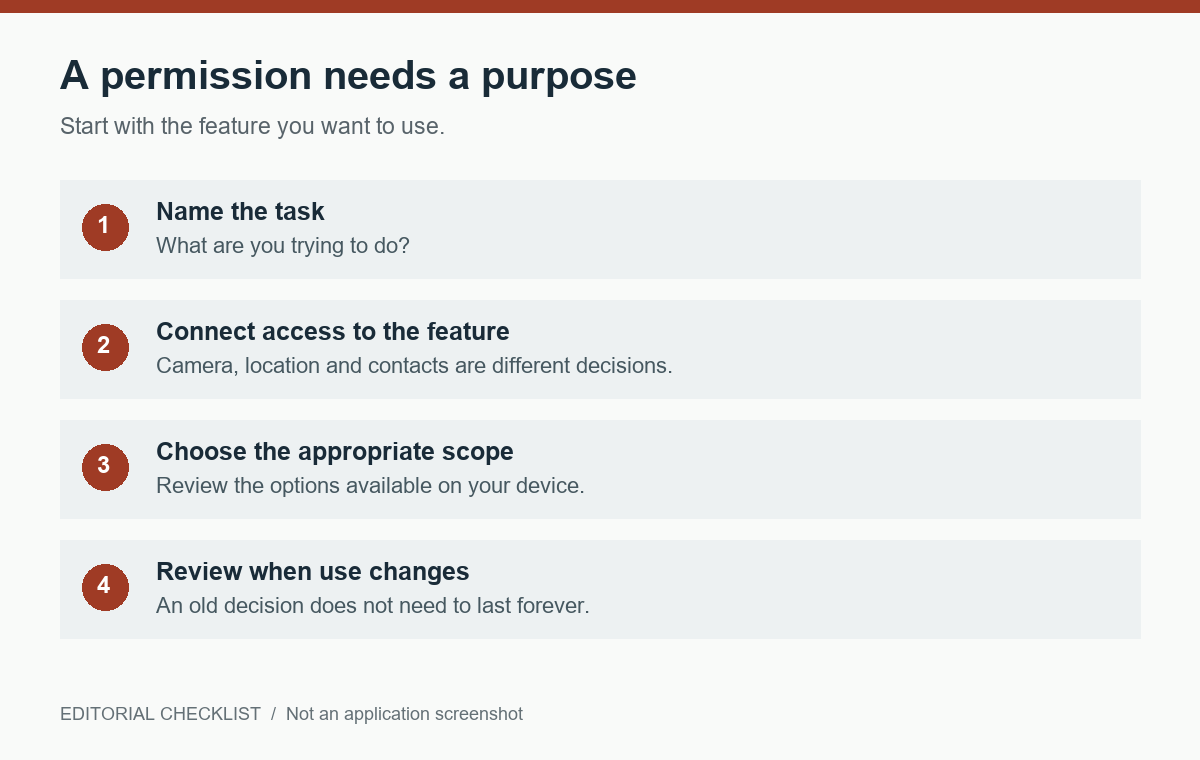
A permission request is easier to assess when you connect it to the feature you are trying to use. You do not need to make every decision at installation.
What feature triggered the request?
A camera request while scanning a product code has a clearer connection to the task than an unexplained prompt appearing while you read a description. Identify the feature first. A plausible reason does not mean every permission is necessary for every use. Read the app’s explanation and consider whether you need that function at all.
Where can I review the setting?
Android’s official guidance explains that permissions can be changed in the app’s settings or through permission categories. Available options depend on the permission and device. Some access can be limited to when the app is being used. Consult the manufacturer’s guidance if the menu names on your phone differ.
What happens if I decline?
A feature requiring that access may not work, but that does not automatically mean you should grant broader access to the whole app. Test the specific function you need and read any explanation. Avoid repeatedly switching unrelated permissions at once, because you will not know which change affected the result.
When should I review again?
Revisit permissions when your use changes or an app is no longer needed. A shopping app used once during a trip may not need the same access months later. Keep a simple note of the feature you wanted and the decision you made. Do not treat a permissions review as proof that an app is entirely trustworthy; it is one part of choosing how to use it.
Your next steps
- Identify the feature behind the prompt.
- Review the choices in device settings.
- Allow only the access needed for your task.
- Revisit permissions when usage changes.